


How to Install Adobe Creative Cloud Apps
- Go to Adobe.com.
- In the upper right corner of the page, select Sign In.

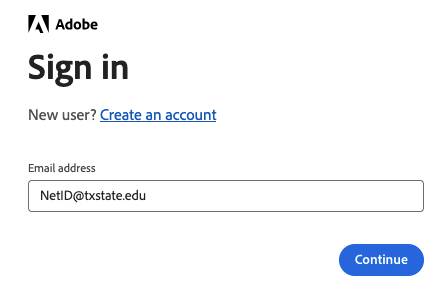
- Under Sign in, enter your Texas State email address as your NetID@txstate.edu (do not enter your email alias) and select Continue.
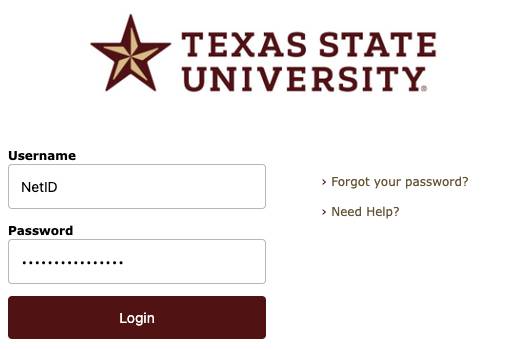
- You may be redirected to the TXST login page where you will enter your TXST Net ID and password and select Login.
Complete Duo authorization if prompted.
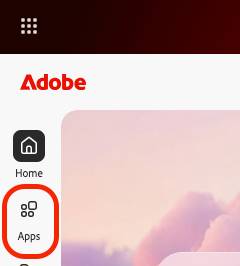
- Once logged in, select Apps from the left-side panel.
- Select Install under the application you would like to install and follow the on-screen instructions to complete the installation process.